How to understand service order statuses
Who this is for
Anyone reading where a job sits. Technicians see assigned orders when the Job board module is on. Accountants work from Invoices, not this status list.
Before you start
- Open Service & billing and choose Service Orders.
- A new order always starts as Estimate. There is no status picker on New Service Order.
Steps
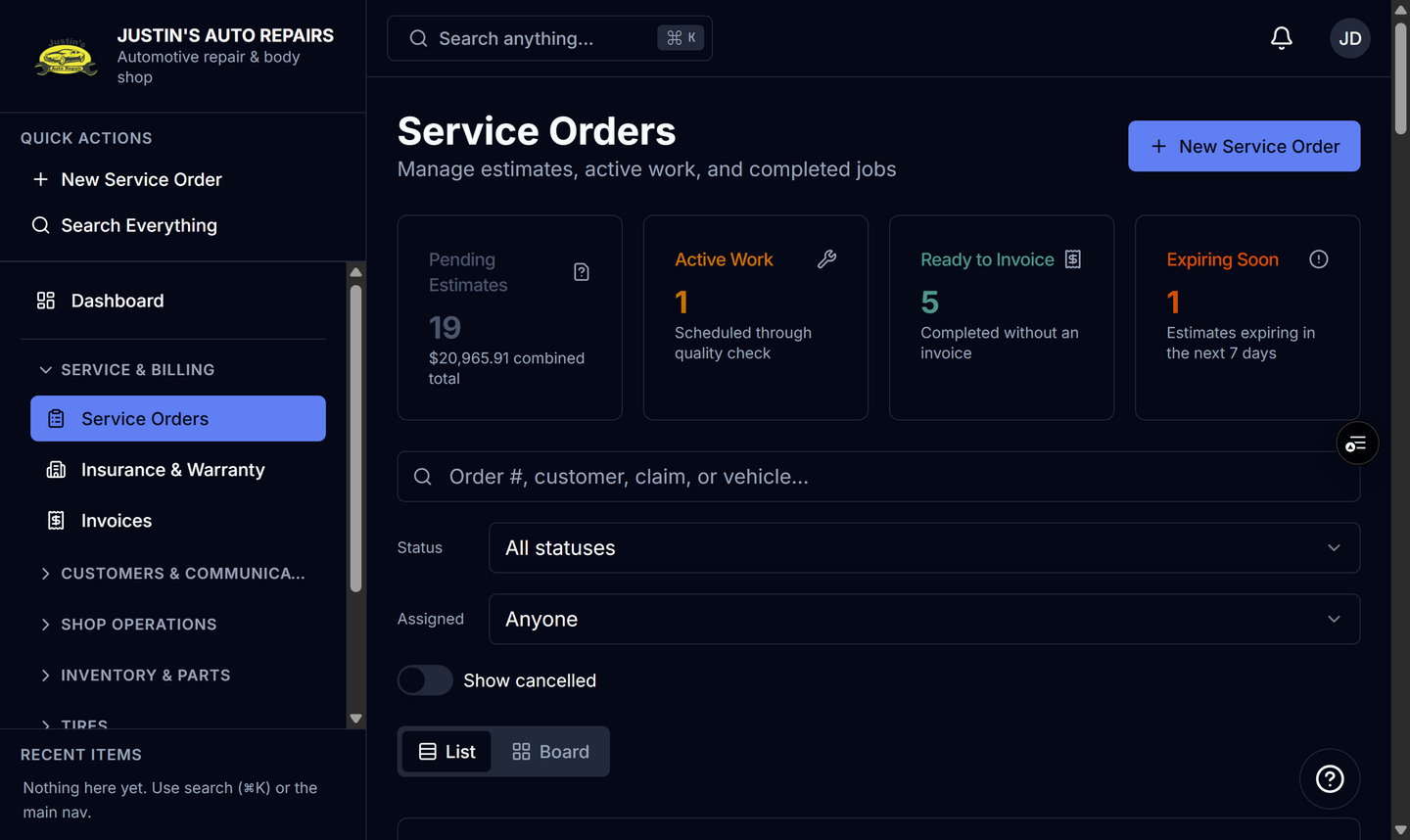
- On List, read the Status column. On Board, read the badge on the card.
- Treat Estimate as the quote, and Authorized as customer or shop approval.
- Treat Scheduled, In progress, Waiting on parts, and Quality check as shop work. The Board groups those under In Work.
- Treat Completed as finished work that is ready to invoice. The Board column is Ready to invoice.
- Treat Invoiced as an invoice exists, and Paid as paid in full. Those sit in Closed.
- Turn on Show cancelled to see Cancelled. It is not in the status dropdown.
How you know it worked
The status card on the order says You are here and names the same status as the list or board. Pending Estimates, Active Work, Ready to Invoice, and Expiring Soon match the groups you just read.
Common snags
- Once work has started, the job cannot go back to Estimate or Authorized. Reactivate, Undo authorization, or a change that needs approval again are the ways back to Estimate.
- After the order is invoiced, status changes are blocked.
- Moving forward to Waiting on parts or Quality check can text the customer. Moving backward does not send that text again.