How to use a canned service
Who this is for
Front counter staff dropping a saved package of lines onto a new or edited service order. Technicians and accountants do not apply canned services.
Before you start
- The shop already has canned services. If the list says No canned services yet, an owner or manager needs to add them before this works.
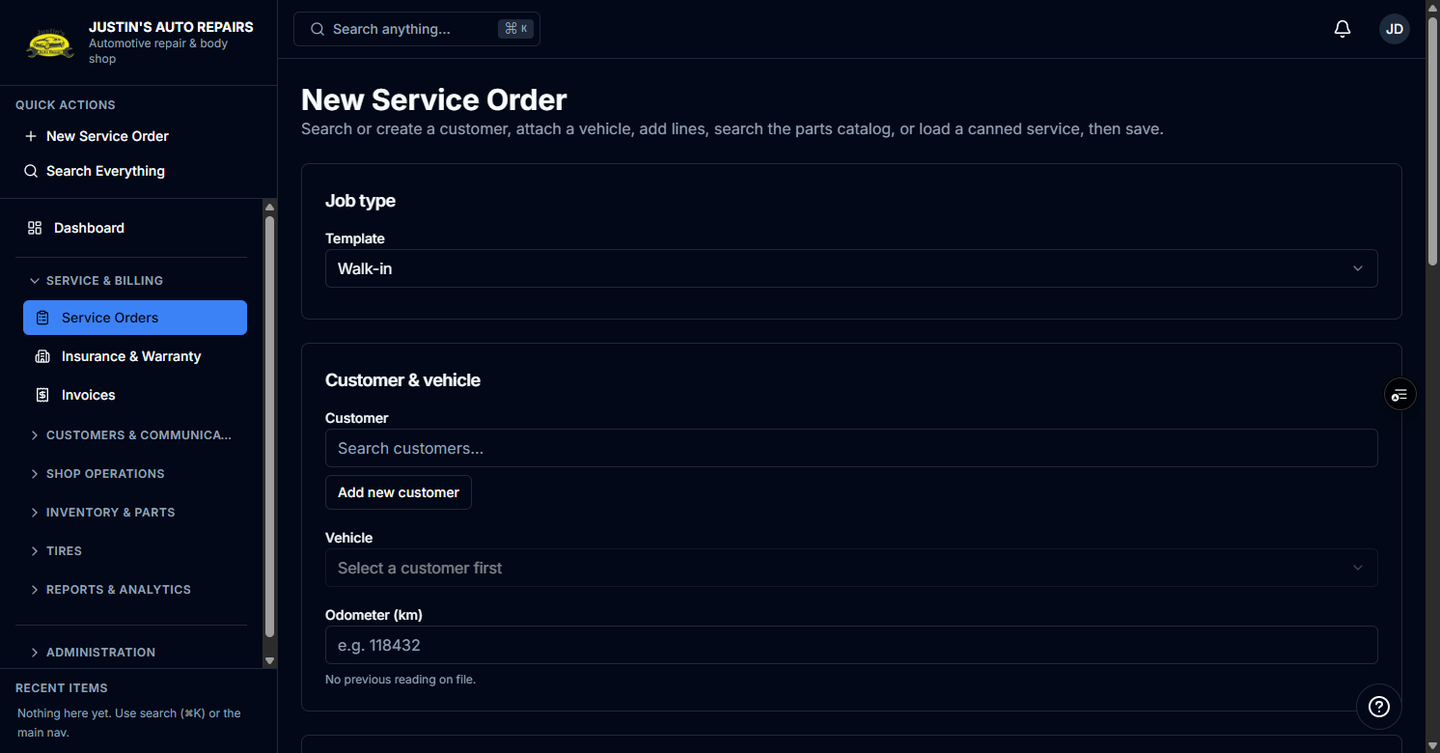
- You are on New Service Order, or on Edit for an order whose lines are still editable. See How to create a service order.
Steps
- Open Add to order.
- Choose the Canned service tab.
- Choose a canned service.
- If Tires is shown, enter how many tires this visit includes.
- Choose Apply lines.
- Edit any line you need to change, then save the order.
How you know it worked
The canned lines appear under Line items. If every line was still blank, the list is filled from the canned service. If you already had lines, the canned lines are added after them. The totals preview updates.
Common snags
- Apply lines does not remove lines you already typed. Delete a line yourself if you do not want it.
- Applying a canned service changes lines and the total. An estimate that was already authorized can need approval again.
- Online booking can pre-fill a canned service at check-in when the owner linked it under Scheduling. That is separate from choosing one here.