How to view invoices
Who this is for
People who bill customers and record payments. Technicians do not have Invoices on the menu.
Before you start
- You are signed in. See How to sign in.
- An invoice always belongs to one service order. Creating one is How to create an invoice.
Steps
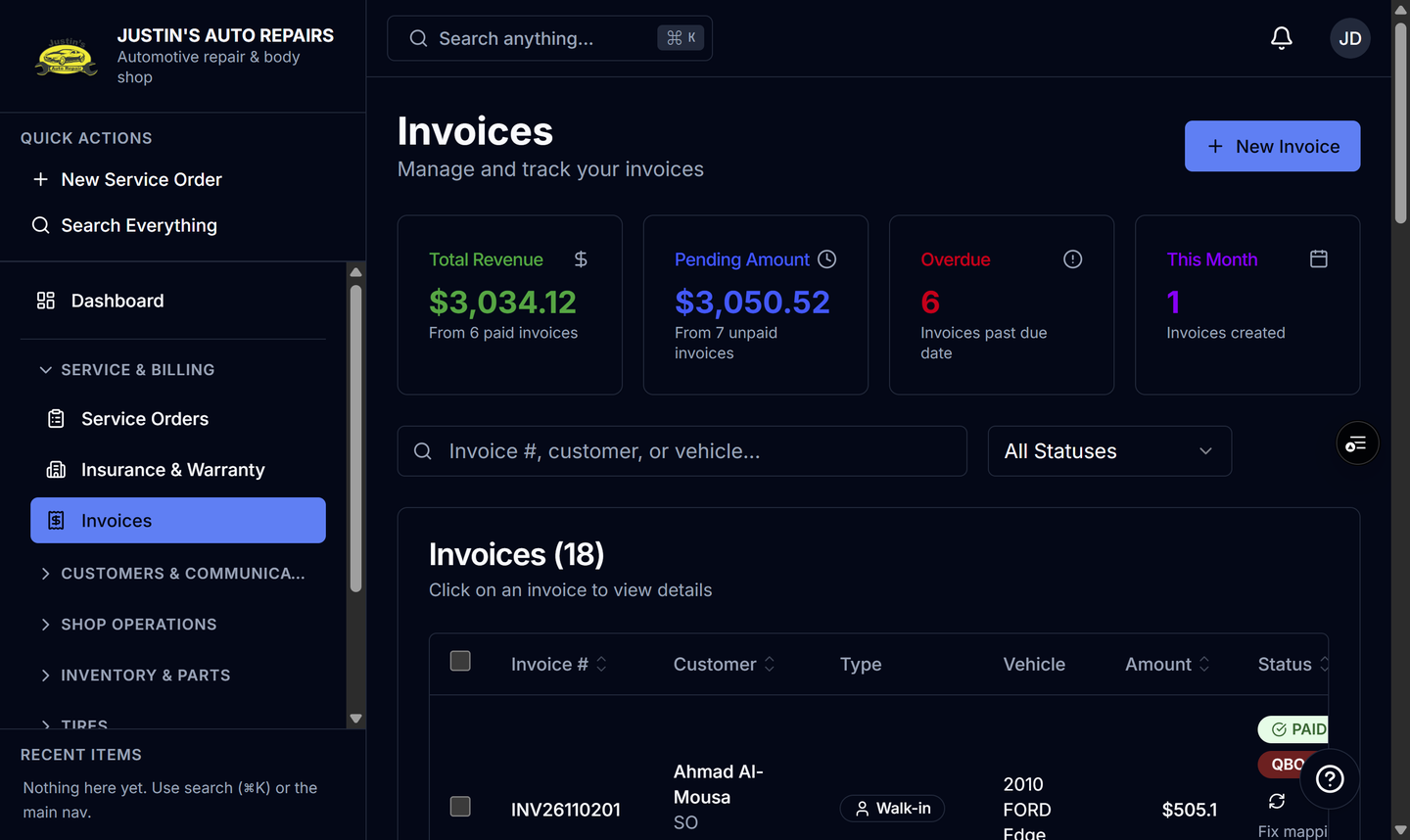
- Open Service & billing and choose Invoices.
- Search by invoice number, customer, or vehicle.
- Set the status filter: All Statuses, Draft, Sent, Partially paid, Paid, Overdue, or Cancelled.
- Read the Type column: Walk-in, Insurance, or Warranty.
- Open a row to see the invoice, its lines, and payment history.
How you know it worked
The list matches the filter. A draft has not been sent. Sent means it was emailed or otherwise delivered. Partially paid means some money is recorded. Paid means the balance is clear. Overdue means the due date has passed with a balance still open.
Common snags
- New Invoice does not open a blank invoice. It opens completed service orders so you can choose Create Invoice.
- The list can take a short moment to refresh after you leave an invoice and come back. The last view is kept for about a minute.
- Insurance and warranty rows use the same statuses. The Type badge is how you tell them from a walk-in.