How to use the job board
Who this is for
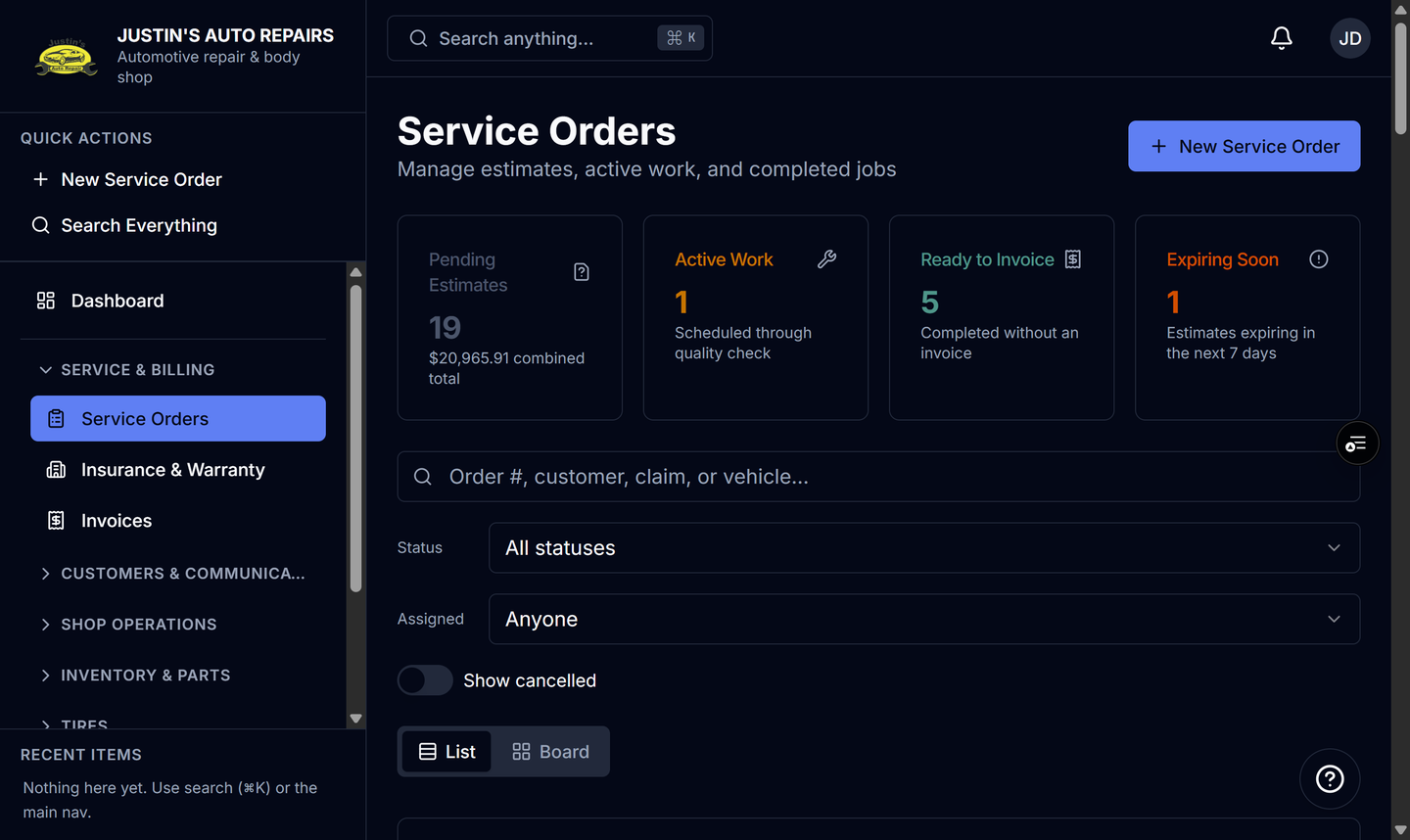
The shop floor looking at work by stage. Owners, managers, and receptionists open the Board tab on Service Orders. The Job board module is what lets technicians open Service Orders at all. There is no separate Jobs menu.
Before you start
- Technicians need the Job board module. Without it, Service Orders is hidden. See How to see why a menu is missing.
- You only need a job on the board. Creating one is How to create a service order.
Steps
- Open Service & billing and choose Service Orders.
- Choose Board.
- Read Estimates, In Work, Ready to invoice, and Closed.
- Inside In Work, read the lanes Scheduled, In progress, Waiting on parts, and Quality check. Each lane shows a count.
- Open a card to see the order. The card shows the total, the exact status, and the same detail as the list.
- On Closed, read the loaded / total badge. Choose Show more for the next page, or View all in List for the full history.
How you know it worked
Cards sit in the column that matches the job. Ready to invoice holds completed jobs with no invoice. Closed holds invoiced and paid jobs. Cancelled cards stay off the board until Show cancelled is on.
Common snags
- Board filters apply to loaded cards only. Switch to List to search every closed job.
- Technicians see assigned orders only, with phone and email hidden.
- Dragging a card and the quick status buttons are for owner, manager, and receptionist. See How to move a job on the board.