How to record a payment
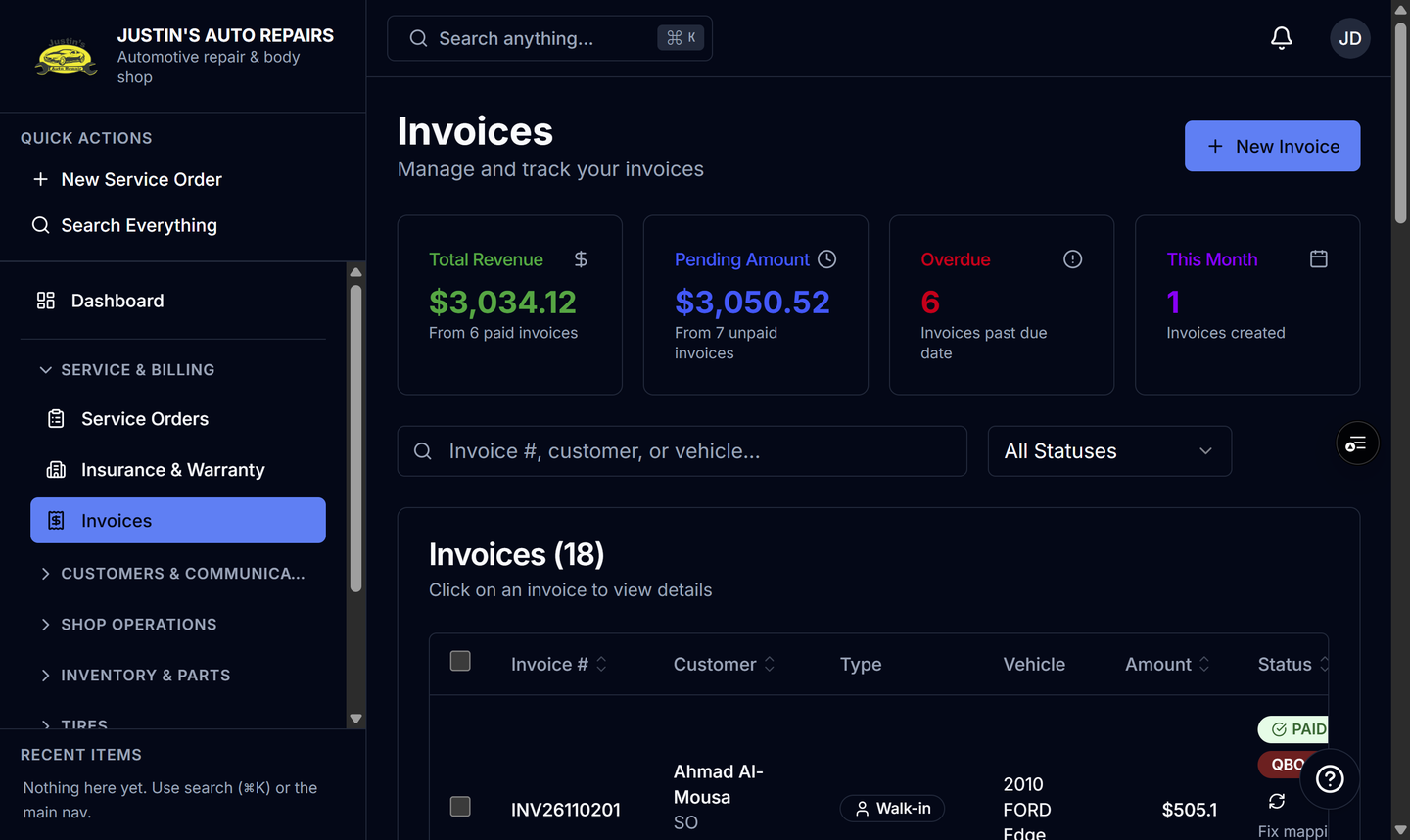
Who this is for
Staff posting money the shop already received. Technicians cannot record payments. This is the shop’s own record. It is separate from a card payment the customer makes through a pay link.
Before you start
- The invoice is Sent, Overdue, or Partially paid. A draft is not ready for Record Payment. See How to send an invoice.
- On an insurance or warranty invoice, Source lets you post the customer portion or the insurer / warranty provider portion. You do not calculate the split on this screen.
Steps
- Open the invoice from Invoices.
- Choose Record Payment. The same action is on the invoice row.
- If Source is shown, choose Customer or the insurer / warranty provider.
- Enter Amount and Method: Cash, Check, Credit Card, Debit Card, Bank Transfer, or Other.
- Choose Record Payment.
How you know it worked
Payment history lists the amount and method. The status becomes Partially paid or Paid. When the invoice is paid in full, the linked service order can show Paid.
Common snags
- Amount has to be greater than zero, and Method is required. The dialog shows the balance for the source you picked.
- A card charge started with Take card payment is recorded when Stripe reports it. You do not also type that same card payment here.
- After any payment, service-order line items lock. Due date, notes, and odometer can still be changed with Edit Invoice.