How to view service orders
Who this is for
Owners, managers, and receptionists reviewing the shop’s jobs. Technicians open Service Orders only when the Job board module is on, and then only jobs assigned to them. Customer phone and email are hidden for technicians.
Before you start
- You are signed in. See How to sign in.
- If Service Orders is missing, see How to see why a menu is missing.
Steps
- Open Service & billing and choose Service Orders.
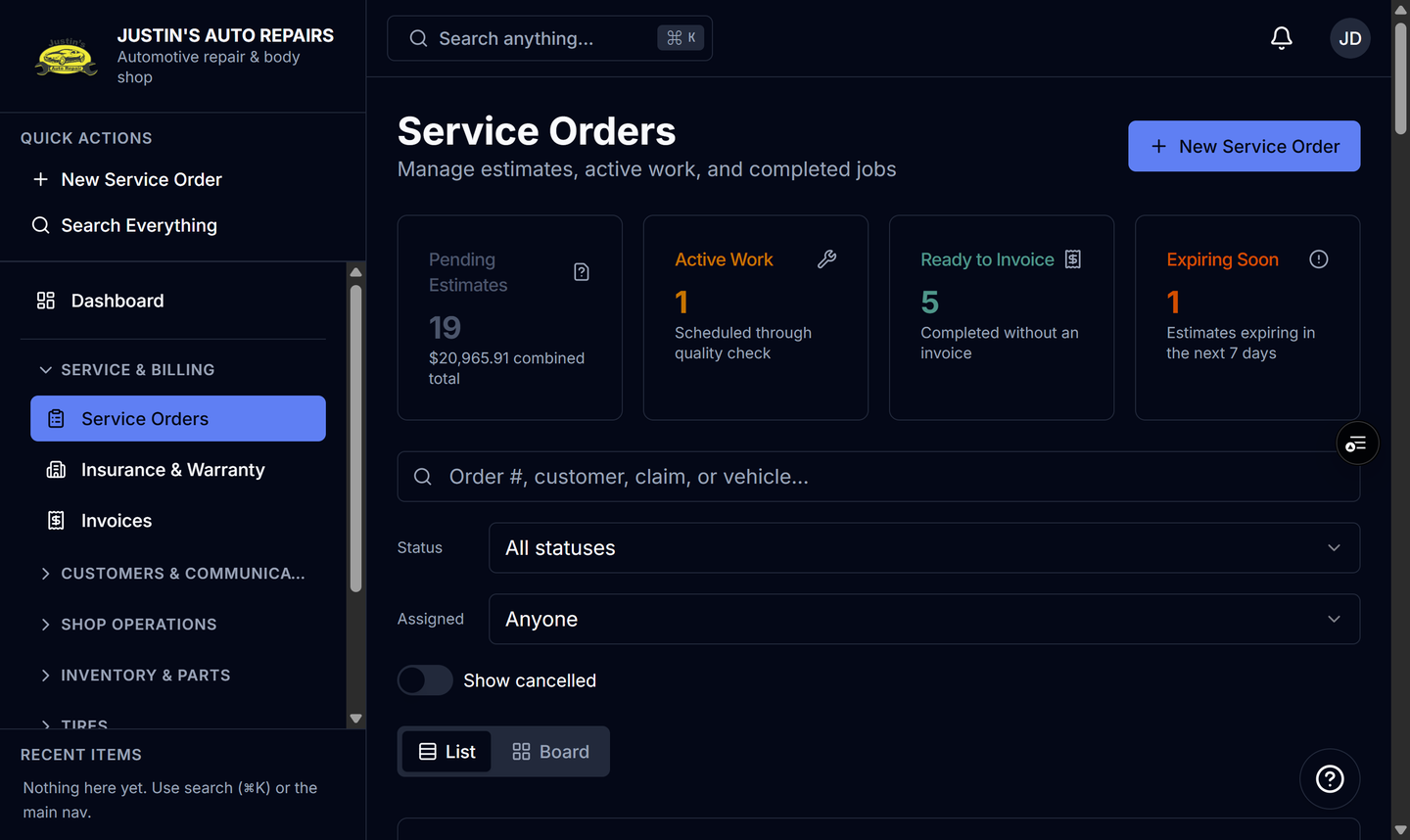
- Read the cards: Pending Estimates, Active Work, Ready to Invoice, and Expiring Soon.
- Stay on List, or choose Board. The choice is remembered in this browser.
- Search by order number, customer, claim, or vehicle.
- Set Status (Estimates, In work, or Done) and Assigned.
- Open a row with View, or Open estimate when the job is still an estimate.
How you know it worked
The table shows Order #, Customer, Vehicle, Total, Status, Detail, and Updated. A completed job with no invoice says Ready to invoice in Detail. An empty filter says no service orders match.
Common snags
- Cancelled jobs stay hidden until you turn on Show cancelled.
- On Board, the status filter only hides cards already loaded. Use List for the full closed history.
- Closed on the board loads a page of invoiced and paid jobs (15 at a time). Choose Show more, or View all in List.