How to move a job on the board
Who this is for
Owners, managers, and receptionists dragging work between columns. Technicians can see the board when the Job board module is on, but they do not drag cards. They change status on the order. See How to complete a service order.
Before you start
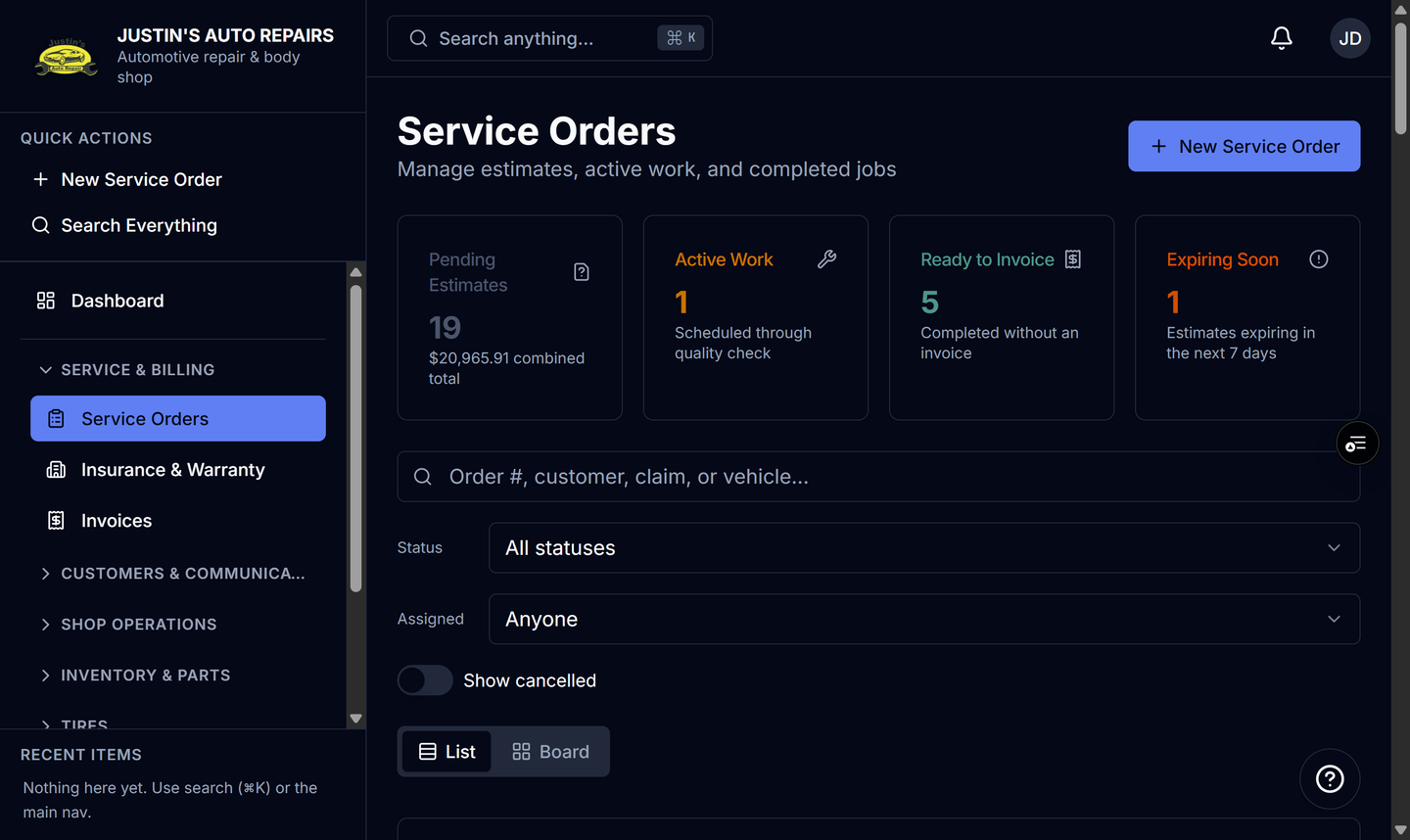
- Open Service Orders and choose Board. See How to use the job board.
- You can move forward or backward until the order is invoiced. After invoicing, status changes are blocked.
Steps
- Drag the card to Estimates, In Work, Ready to invoice, or Closed.
- If Choose destination status opens, select the status and choose Apply.
- Or choose a status button on the card. A backward move is marked with a left arrow.
- Inside In Work, drop the card on Scheduled, In progress, Waiting on parts, or Quality check.
How you know it worked
The card’s badge matches the lane you chose. On the order, You are here shows the same status. A forward move into Waiting on parts or Quality check can text the customer. A backward move does not send that text again.
Common snags
- A drop that could mean more than one status waits for you to pick one. Cancel leaves the card where it was.
- You cannot drag a started job back to Estimate or Authorized.
- Leaving Completed before an invoice asks you to confirm. On the order that button reads Reopen.