How to add a card for BayOps billing
Who this is for
You are the owner adding the card BayOps will bill when the shop's trial ends. You never type the card number into BayOps.
Before you start
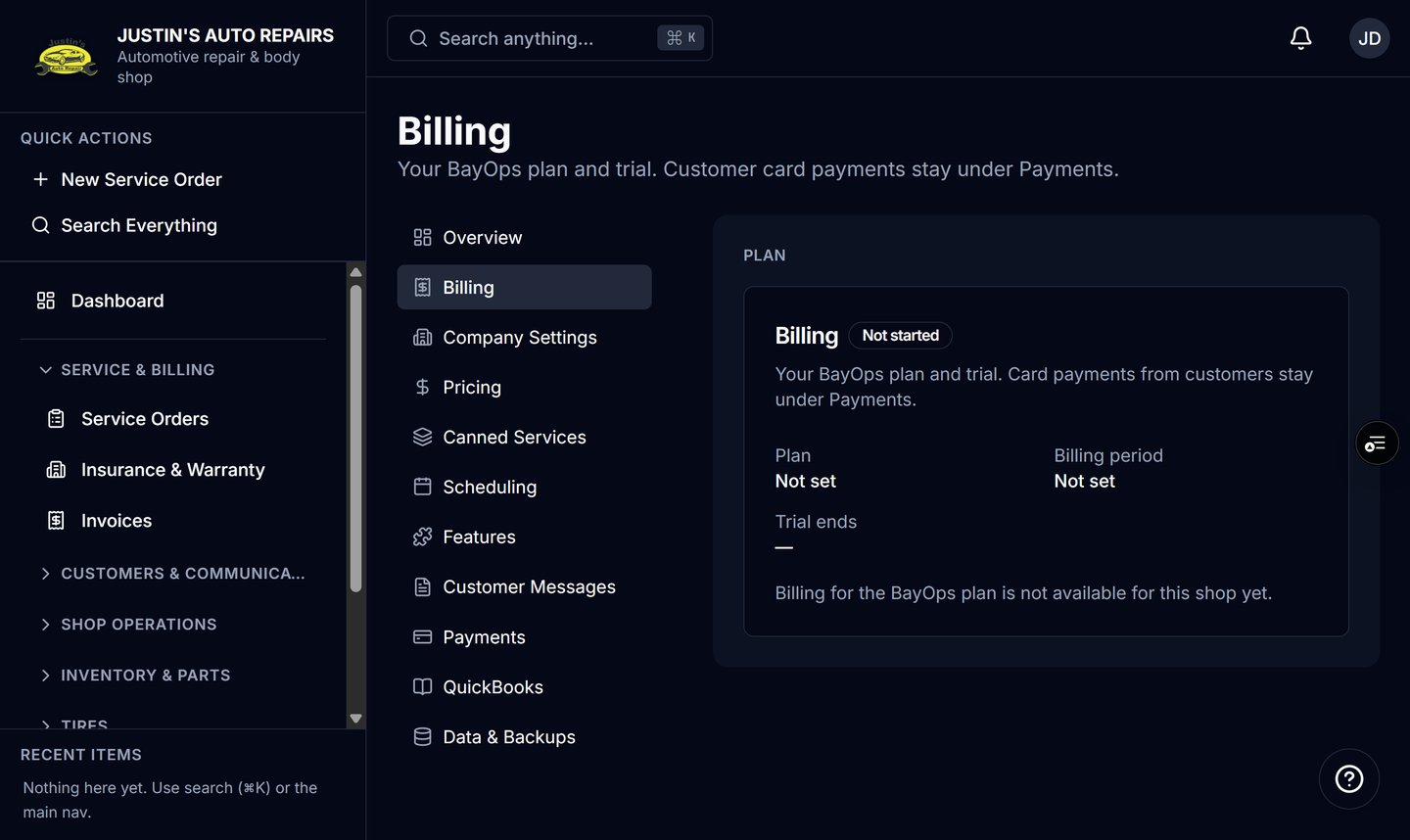
- A BayOps subscription already exists, so Billing shows a status such as Trialing. See Open shop billing.
- Nothing is charged during the trial. If no payment method is on file when the trial ends, Stripe pauses the subscription.
Steps
- Open Settings.
- Choose Billing.
- Choose Manage billing and invoices.
- On the Stripe customer portal, add the card and confirm.
- Return to BayOps when Stripe sends you back. Card numbers, invoice history, and PDF invoices stay in that portal.
How you know it worked
Stripe accepted the card, and you land back on the shop billing page. After the first real subscription invoice is paid, the status becomes Active. The $0 invoice created with the trial does not end the trial.
Common snags
- The button is missing. The note says billing is not available, or that a subscription has not been created. Contact BayOps support. There is no card form on the BayOps page.
- The subscription is Paused and other staff cannot sign in. Open Billing (you can still reach it), choose Manage billing and invoices, and add the card. Stripe can resume billing once a default card is on the subscription.
- You wanted to charge a customer for a repair. Use Payments, not this portal. See Connect Stripe for customer payments.