How to open company settings
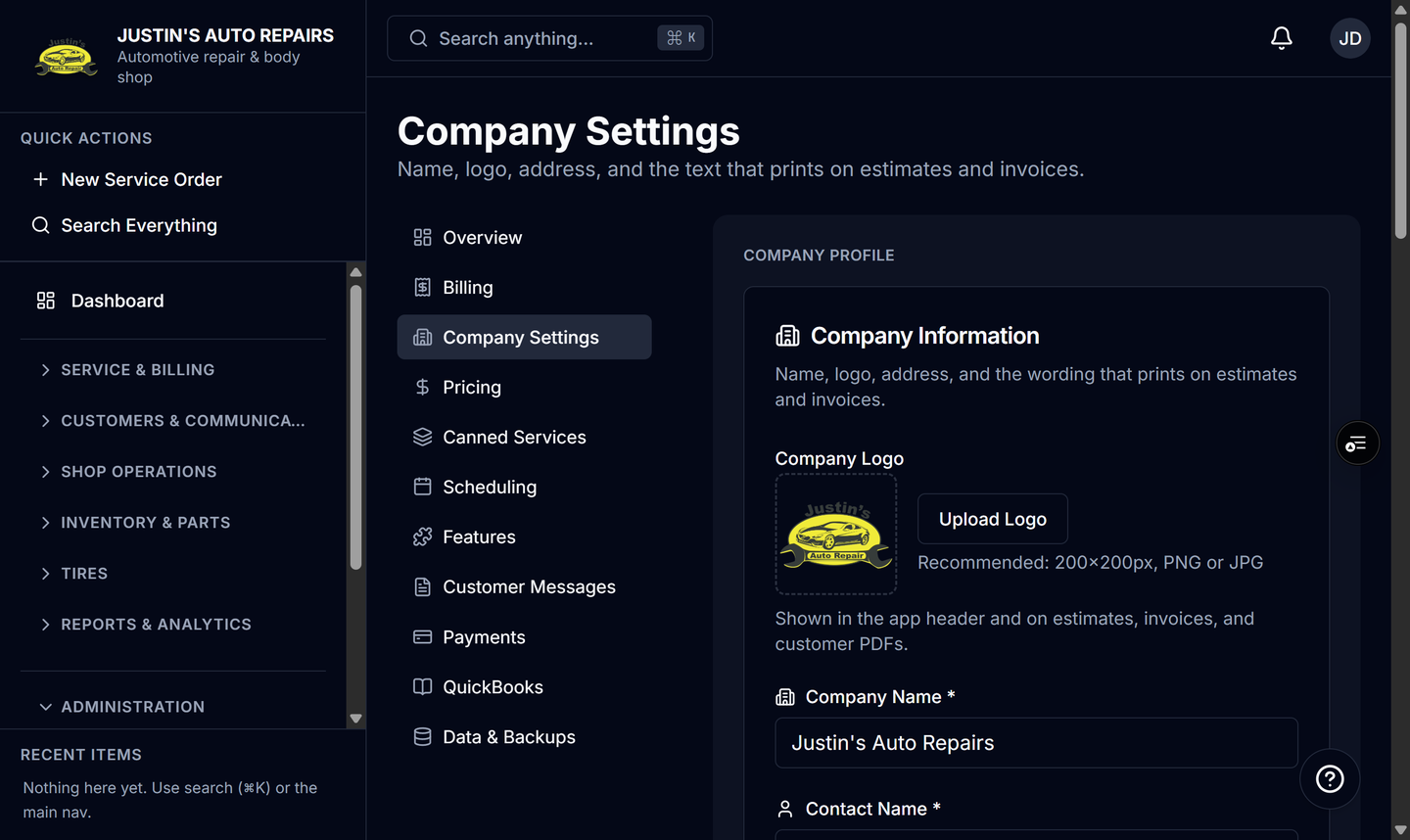
Who this is for
You are the owner updating the name, address, and wording that print on estimates and invoices.
Before you start
- Sign in as the owner. Managers, receptionists, and accountants do not edit company settings.
- The province on this form is what BayOps uses for sales tax.
Steps
- Open Settings.
- Choose Company Settings.
- Update the business name, contact name, address, phone, and email.
- Set the province, then enter the tax registration number shown on PDFs.
- Add the logo, estimate terms, invoice terms, and cheque instructions if you want them on invoice PDFs.
- Choose Save Company Settings.
How you know it worked
The form saves without an error, and the next estimate or invoice PDF shows the name, address, and terms you entered.
Common snags
- Company Settings is missing and you only see Canned Services or Data Export. Those limited views are for a manager or an accountant. Company profile edits stay with the owner.
- The tax number label changes when you change province. Save again after you pick the province so the registration number matches that tax.