How to open the features list
Who this is for
You are the owner checking the optional tools this shop can configure. The list shows what is already available. It is not the switch that turns the whole plan on.
Before you start
- Plan modules such as payments, QuickBooks, scheduling, inspections, and insurance are enabled by the plan or by BayOps support.
- You can change the tools that appear in this section. A missing module is a support request, not a hidden switch on this page.
Steps
- Open Settings.
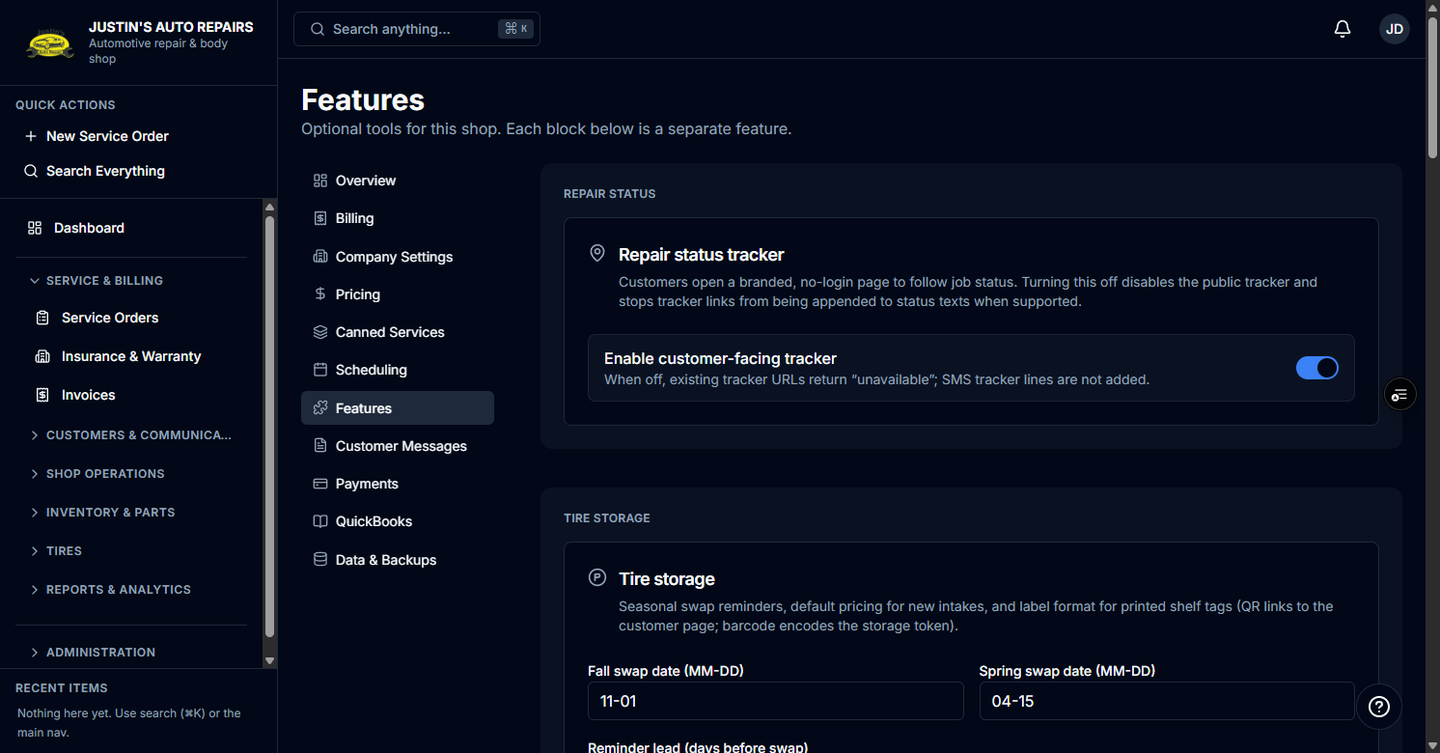
- Choose Features.
- Under Repair status, turn Enable customer-facing tracker on or off. Off stops new tracker links and makes existing tracker pages say they are unavailable.
- If Tire storage is listed, set swap dates, the reminder lead time, the default storage fee, and the label format, then save.
- If Review campaigns or Parts catalog is listed, complete that card and save it.
- To add a module that is not listed, contact BayOps support and name the module.
How you know it worked
Features opens and shows one card per optional tool the shop already has. Saving the tracker switch updates it immediately.
Common snags
- Features is missing, or the page says no optional features are available. The shop has no owner-configurable tools turned on yet. Contact BayOps support.
- You expected a switch for Stripe or QuickBooks. Those sections appear in the Settings sidebar only after BayOps support enables the module. See Connect Stripe for customer payments and Connect QuickBooks.