How to connect Stripe for customer payments
Who this is for
You are the owner connecting the shop's own Stripe account so you can charge your customers on invoices. The money lands in your Stripe account. You handle refunds and chargebacks. BayOps does not add a platform fee.
Before you start
- The Payments module is on. If Payments is missing from Settings, contact BayOps support.
- This connection is separate from the card BayOps uses to bill the shop. That card is under Billing.
Steps
- Open Settings.
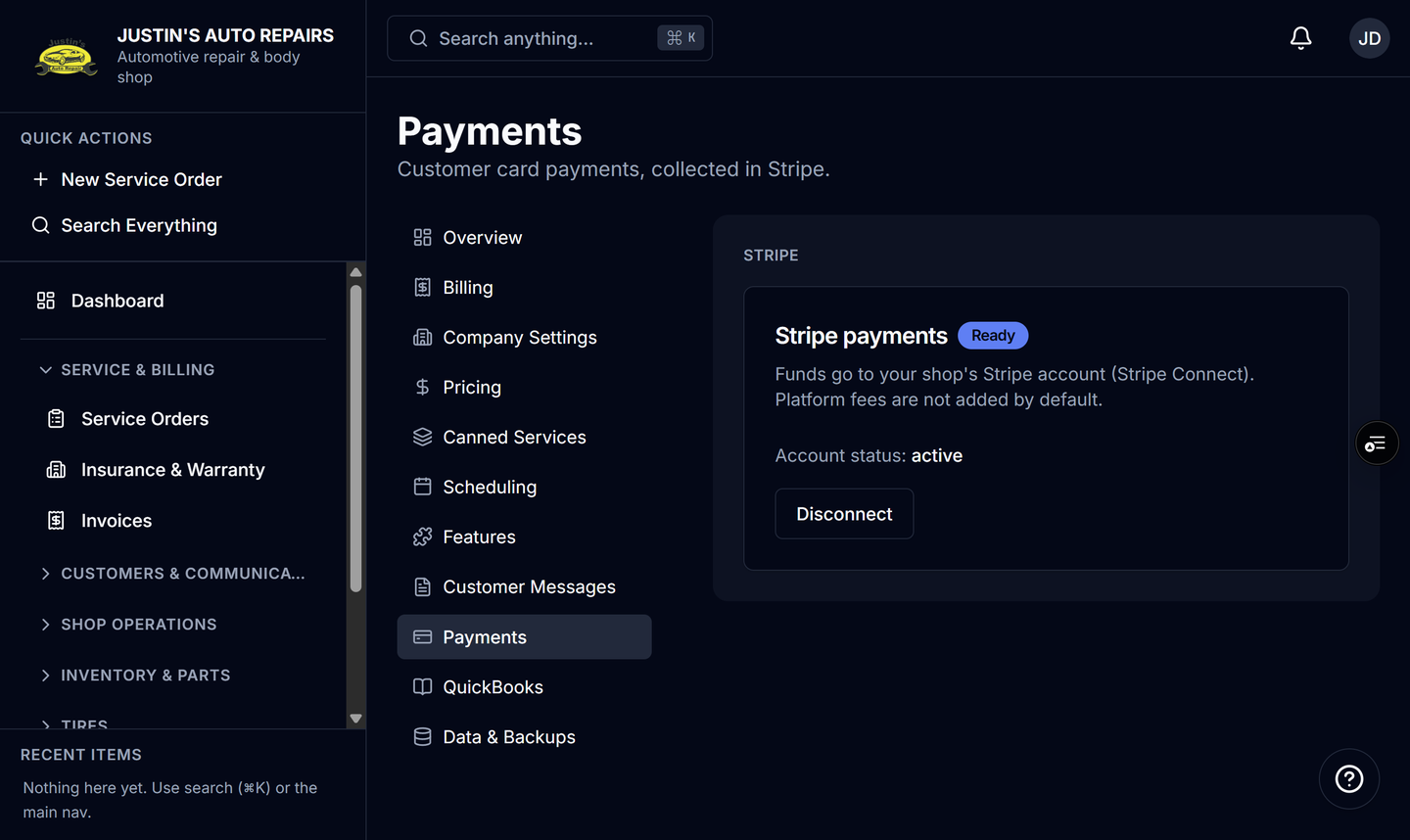
- Choose Payments.
- Choose Connect Stripe. If a previous attempt stopped halfway, choose Continue Stripe setup.
- Finish the steps on Stripe's site.
- Wait until BayOps shows the badge Ready.
How you know it worked
The badge is Ready, and the account status is shown. Staff can then use Pay with Stripe and text a payment link from an invoice. The customer page is Pay an invoice.
Common snags
- The badge stays Setup in progress. Stripe still needs information. Choose Continue Stripe setup.
- The card says you do not have access or the payments module is not enabled. Confirm you are the owner, then ask BayOps support to enable Payments.
- You opened Billing and reached a portal for the BayOps subscription. Customer charges are only under Payments.