How to open shop billing
Who this is for
You are the owner checking the shop's own BayOps subscription: the plan, the billing period, the trial end, and the subscription status. Invoices on this page are invoices BayOps sends the shop.
Before you start
- This is the BayOps plan. Customer card payments are a different section. See Connect Stripe for customer payments.
- Nothing is charged during the trial.
Steps
- Open Settings.
- Choose Billing.
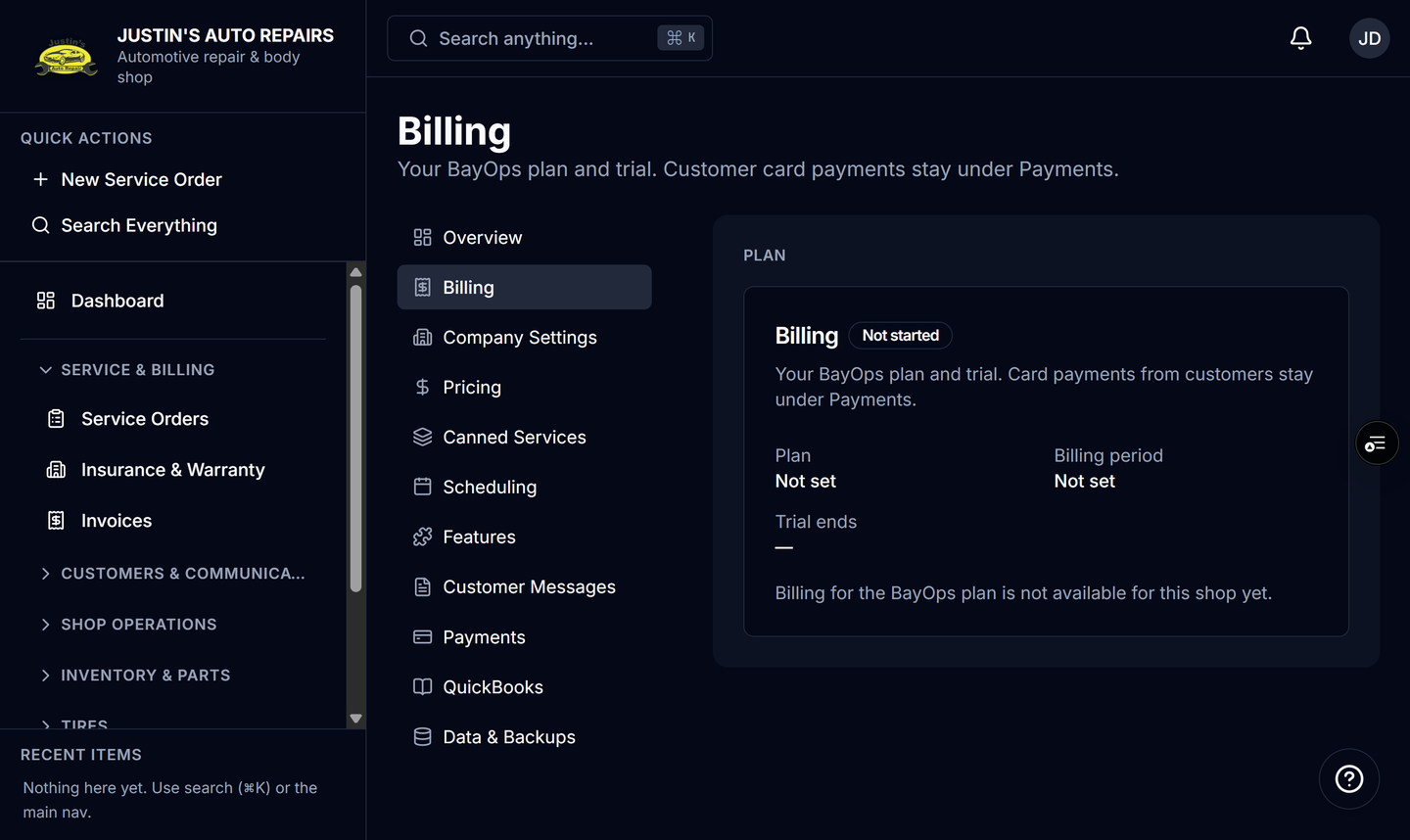
- Read Plan, Billing period, and Trial ends.
- Read the status badge: Trialing, Active, Paused, or another Stripe status.
- If a grace end is shown, read that date. Staff can still sign in until grace ends.
How you know it worked
The card title is Billing, and the description says it is your BayOps plan and trial. Customer card payments stay under Payments.
Common snags
- The card says billing for the BayOps plan is not available yet, or that a subscription has not been created. Platform billing is not set up for this shop. Reply to the trial email or contact BayOps support. You cannot create the plan from this card.
- The status is Paused after the trial. Stripe pauses the subscription when no payment method is on file at the end of the trial. Add the card with Add a card for BayOps billing.