How to set parts pricing
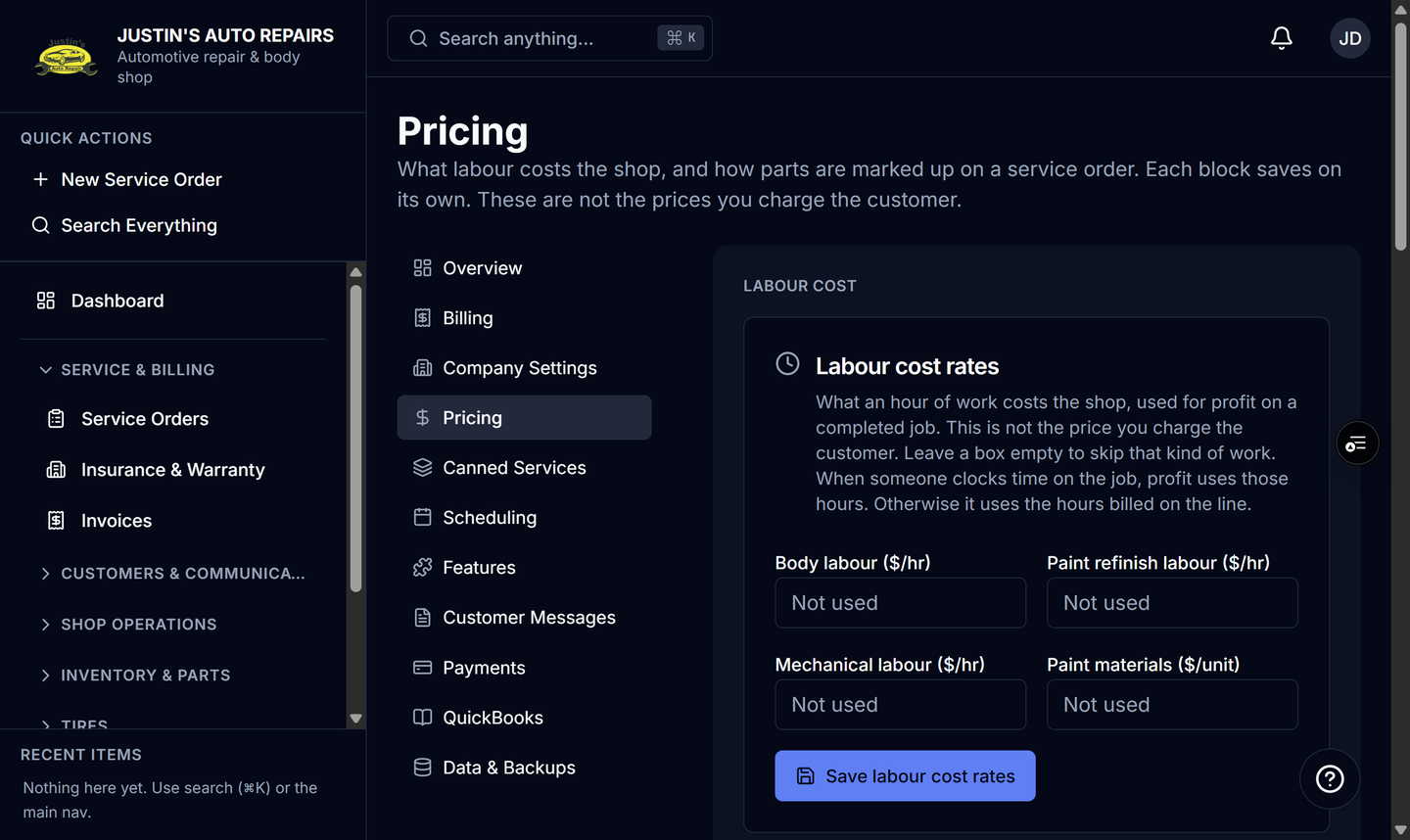
Who this is for
You are the owner setting how parts are marked up on a service order, and the loaded labour rate used for profit.
Before you start
- Each block on this page saves on its own. Labour cost is the shop's cost. Parts markup is the sell price built from what the part cost.
- Marking a core refunded records that you no longer owe the customer. It does not move money. See Bill a core deposit.
Steps
- Open Settings.
- Choose Pricing.
- Under Labour cost, enter the loaded hourly rates and choose Save labour cost rates.
- Under Parts markup, choose Markup from what the part cost.
- Set the markup percent on each cost tier. Use Add tier when you need another band.
- Turn on Bill core deposits to the customer if the customer should see the core as its own line, and Mark up core charges if that line should use the matrix.
- Choose Save parts pricing matrix.
How you know it worked
The parts card saves, and a new parts line on a service order uses the tier for that part's cost. Existing lines keep the price already stored.
Common snags
- Markup looks unchanged. No automatic markup leaves the list price. Vendor list price uses the supplier list and the tiers only when there is no list price.
- Mark up core charges stays off until Bill core deposits to the customer is on.
- A core you marked refunded still shows the original charge until you handle the money outside this switch. The switch does not send a refund.