How to read the audit log
Who this is for
You are the owner reviewing the shop's security and compliance trail: who changed a record, and when.
Before you start
- Sign in as the owner. The page tells other roles that only owners can view the audit log.
- The default date range is already filled in. Change it before you apply filters.
Steps
- Open Administration in the sidebar.
- Choose Audit Log.
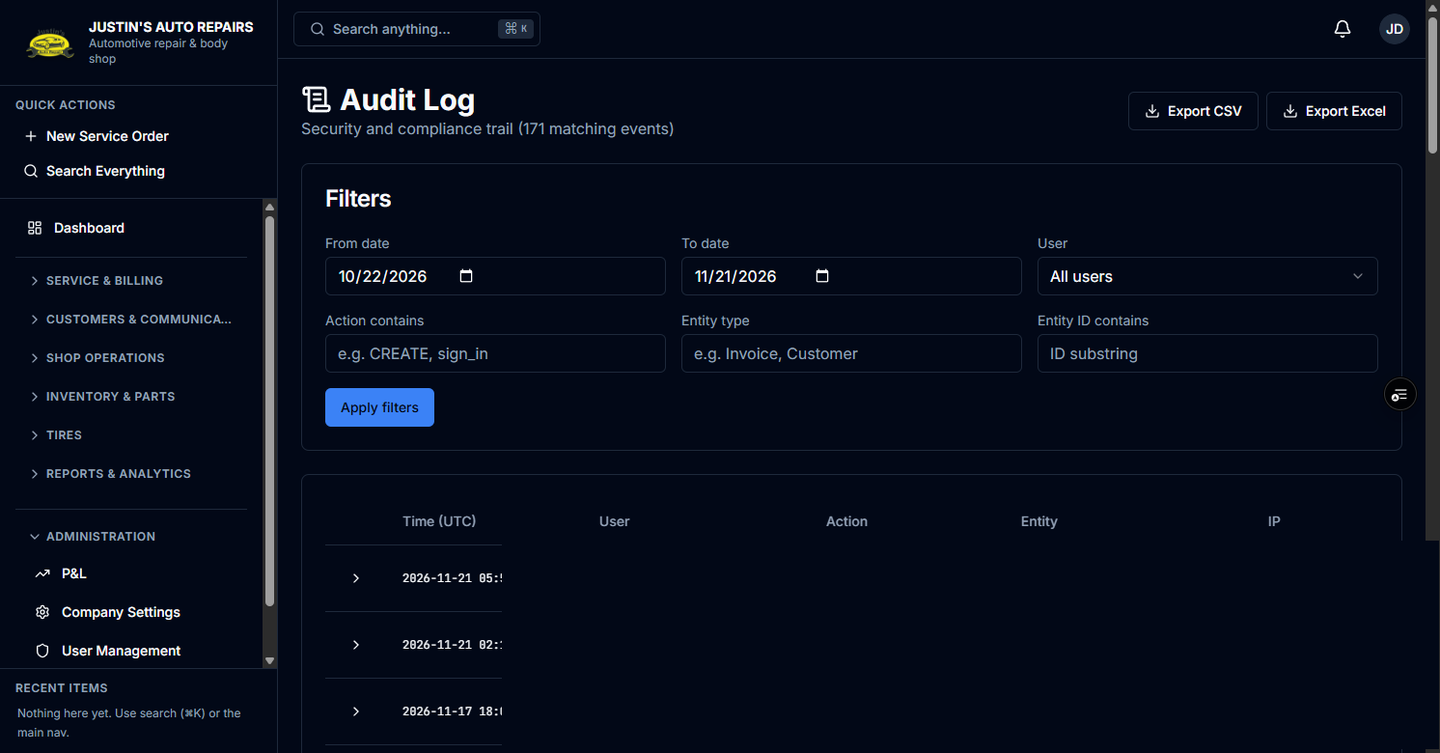
- Set From date, To date, and any user or action filter you need.
- Choose Apply filters.
- Read the matching events. The heading shows how many events match.
- Choose Export CSV or Export Excel if you need a file of the current filter.
How you know it worked
The title is Audit Log, and the count of matching events updates after you apply filters. The export downloads for that same filter.
Common snags
- The page says access denied. You are signed in as someone other than the owner.
- The list looks empty. Widen the dates and choose Apply filters again. Draft filters do not apply until that button.
- You wanted a spreadsheet of customers or invoices. That download is Export shop data, not the audit export.