How to edit customer messages
Who this is for
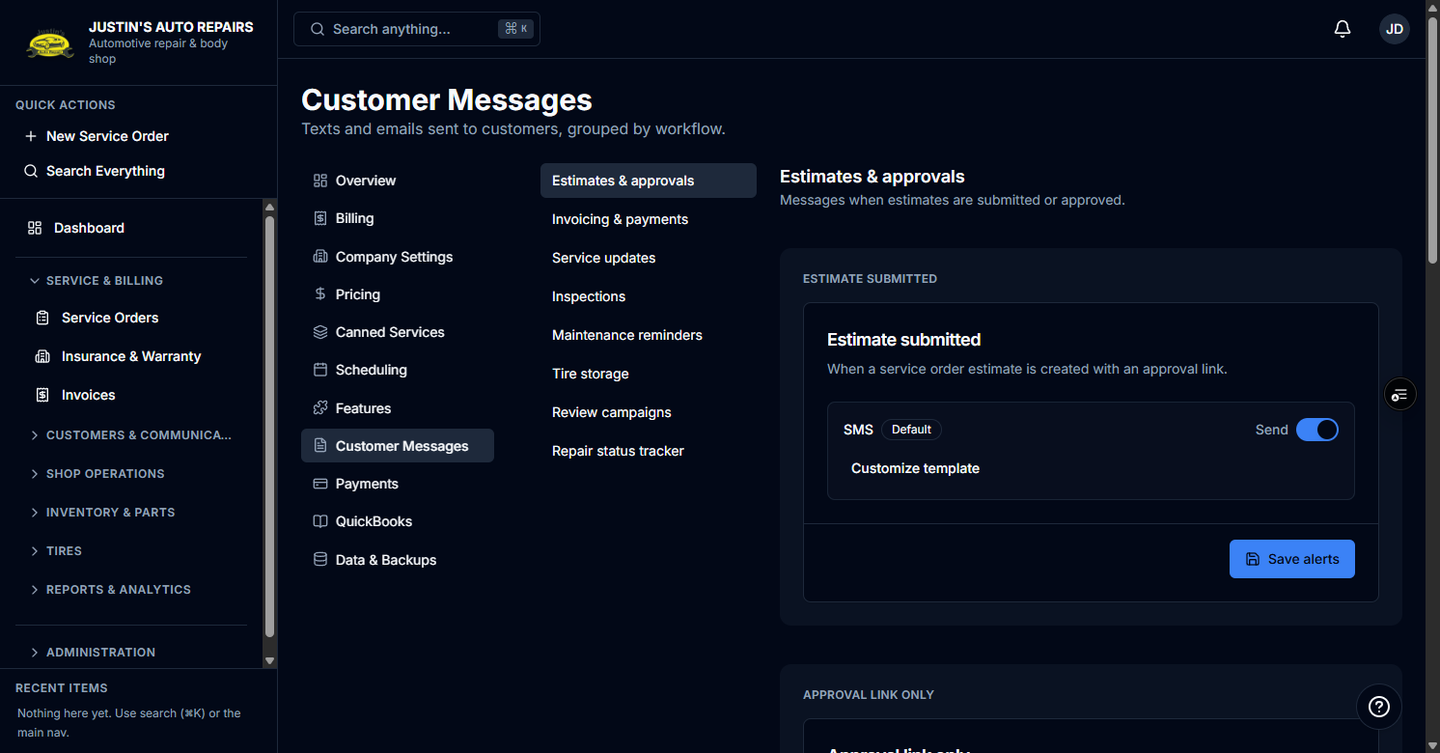
You are the owner changing the emails and texts BayOps sends to customers. Messages are grouped by workflow, and a workflow appears only when that module is on.
Before you start
- Keep the
{variable}placeholders, such as the customer name or a link. BayOps fills them in when it sends. - Fleet digest email and appointment confirmation texts are not in this list yet.
Steps
- Open Settings.
- Choose Customer Messages.
- Choose a workflow, such as Estimates & approvals, Invoicing & payments, or Service updates.
- Open the message card you want to change.
- Edit the email subject and body, or the text body, then choose Save template.
- Choose Save alerts on that card when you are turning the email or text on or off, or changing reminder days.
How you know it worked
The card saves, and the next message of that type uses your wording. A workflow you do not have, such as tire storage, stays off the list until that module is on.
Common snags
- The page says no customer message workflows are available. The related modules are off. Contact BayOps support, then return to this section.
- You changed the tracker wording and customers still get no link. The repair tracker itself is off under Features.
- Review timing lives under Features → Review campaigns. This section only edits the review message text.