How to manage canned services
Who this is for
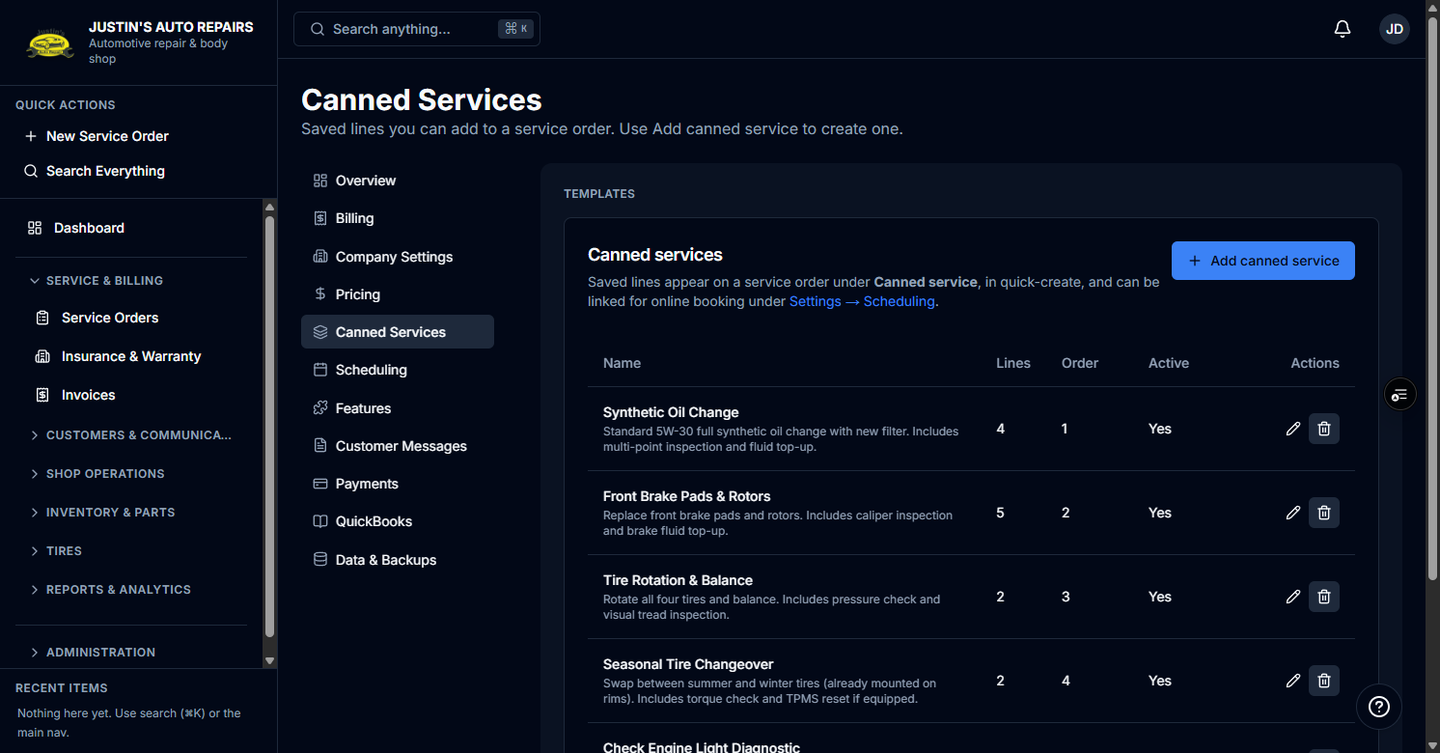
You save a named set of lines, such as an oil change or a tire swap, and drop that set onto a service order. Owners edit them from the full Settings page. A manager who manages service orders opens Settings and sees only Canned Services.
Before you start
- You need at least one line: description, type, quantity, and unit price. Part code is optional.
- A line marked Per tire is one tire. On a service order, BayOps asks how many tires (1–6, default 4) and multiplies those lines. Appointment check-in uses a tire count of 1.
Steps
- Open Settings.
- Choose Canned Services. A manager may already be on that page.
- Choose Add canned service.
- Enter the name and each line's description, type, quantity, and price.
- Mark a line Per tire when the quantity is per tire.
- Choose Create canned service.
- On the list, use the row actions to edit or delete a template.
How you know it worked
The template appears in the list. A template with any per-tire line shows a Tire job badge. On a service order it appears under Canned service.
Common snags
- You cannot open Settings. Receptionists are not described as template editors on the settings screen. Ask an owner or a manager. If your sidebar still shows Canned Services, your role is allowed to edit them.
- Prices are zero on Seasonal tire swap (on rims) or Mount and balance (per tire). Those two are added when tire storage is on, and you set the rates.
- Online booking uses a template only after it is linked under Scheduling. See Open scheduling settings.